

Connect your coding agent
One command, then click Allow in the browser. No API key to copy.
Claude Code
Add GuideMark
In your project's folder, run:
claude mcp add --transport http guidemark https://guidemark.co/api/mcpAdd --scope user to make it available in every folder.
Sign in
Start claude, type /mcp, select guidemark and choose Authenticate. Your browser opens GuideMark.
Allow access
The same command is in Settings → Agents, ready to copy:
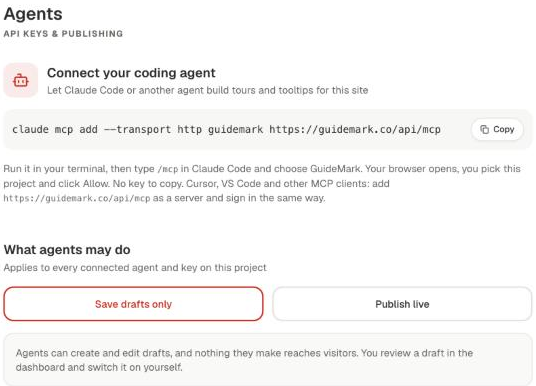
Sign in to GuideMark if asked, choose the project the agent should work on, and click Allow. Tick Also let it publish live only if you want this agent to put tours in front of visitors (see Drafts and publishing).
The page shows where you'll be sent back to. For Claude Code that's an address on your own computer (localhost); only continue if you just started the sign-in yourself.
Check it
Back in Claude Code, /mcp shows guidemark as connected. Try:
Use GuideMark: call get_project and list_tours, then tell me what this project has.
Cursor
Add GuideMark to Cursor. Cursor opens and asks you to confirm the install. The first time the agent uses GuideMark, your browser opens GuideMark: choose the project and click Allow.
To add it by hand, put this in .cursor/mcp.json in your project, or ~/.cursor/mcp.json for every project:
{
  "mcpServers": {
    "guidemark": { "url": "https://guidemark.co/api/mcp" }
  }
}
VS Code
Add GuideMark to VS Code. VS Code opens and shows the server; click Install, then sign in the same way when it first starts.
Or from a terminal:
code --add-mcp '{"name":"guidemark","type":"http","url":"https://guidemark.co/api/mcp"}'Claude (claude.ai and the desktop app)
Open Customize → Connectors, click + Add, then Add custom connector. Name it GuideMark, paste https://guidemark.co/api/mcp as the server URL, and click Continue. Under OAuth client, choose Register automatically, then click Add and Connect to sign in.
On a Team or Enterprise plan an Owner adds the connector once, and everyone then clicks Connect on it.
Codex CLI
codex mcp add guidemark --url https://guidemark.co/api/mcp && codex mcp login guidemarkcodex mcp login opens GuideMark in your browser to sign in.
Other MCP clients
Add a Streamable HTTP server with the URL https://guidemark.co/api/mcp and no headers. On first use the client opens GuideMark in your browser; choose the project and click Allow. Clients that support MCP sign-in find everything else on their own.
Agents and directories can also discover the server without being told about it: GuideMark publishes an MCP Server Card at https://guidemark.co/api/mcp/server-card, listed in https://guidemark.co/.well-known/ai-catalog.json.
Clients that can't sign in
Use an API key as a header instead:
claude mcp add --transport http guidemark https://guidemark.co/api/mcp --header "Authorization: Bearer gm_…"Disconnecting
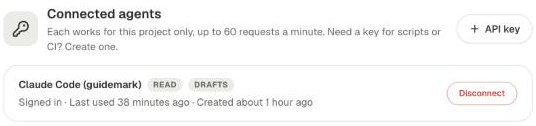
In Settings → Agents, every connected agent is listed as Signed in. Click Disconnect and it loses access straight away.
How the sign-in works
GuideMark follows the MCP authorization spec (OAuth 2.1 with PKCE). Your agent never sees your GuideMark password. It gets a token for one project that expires after an hour and renews itself; renewing stops when you disconnect it. These tokens only work for the MCP server, not the REST API.