

Install GuideMark
Add one script tag to your app, then check the dashboard says Connected.
Prefer to let your coding agent do it? See Install with your coding agent.
Create a project
Sign up at guidemark.co and create a project. Set its domain to your app's address (for example https://app.example.com). Tours only run on that domain, and the editor opens there.
Add the script tag
Copy the snippet from Settings → Installation in the dashboard. It has your project ID filled in:
<script
  id="guidemark-embed"
  src="https://naiuhnzdampxdewizhin.supabase.co/storage/v1/object/public/widgets/embed.js"
  data-project-id="YOUR_PROJECT_ID"
  data-api-url="https://guidemark.co"
  async
></script>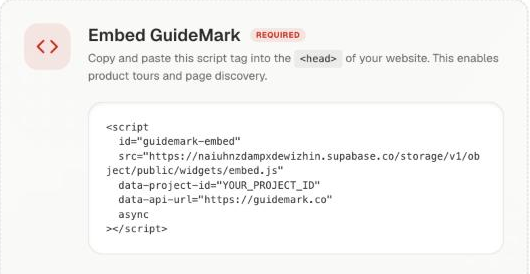
Add it once, to the layout or HTML template every page shares. Where it goes in your framework is below.
Check the connection
Load any page of your app with the script, then open the dashboard. The status next to the project picker turns to Connected once the widget has checked in; click the refresh button beside it to check again. If it doesn't, see Troubleshooting.

Where the script goes
Put it in the one file every page shares, so it loads once per visit. Placing it just before </body> is the safe choice: the widget attaches itself to document.body as soon as it runs. Replace YOUR_PROJECT_ID with the ID from Settings → Installation.
Next.js (App Router)
Use next/script in app/layout.tsx. Next.js loads it once and keeps it across client-side navigation.
// app/layout.tsx
import Script from 'next/script';

export default function RootLayout({ children }: { children: React.ReactNode }) {
  return (
    <html lang="en">
      <body>
        {children}
        <Script
          id="guidemark-embed"
          src="https://naiuhnzdampxdewizhin.supabase.co/storage/v1/object/public/widgets/embed.js"
          data-project-id="YOUR_PROJECT_ID"
          data-api-url="https://guidemark.co"
          strategy="afterInteractive"
        />
      </body>
    </html>
  );
}
Next.js (Pages Router)
Use next/script in pages/_app.tsx:
// pages/_app.tsx
import type { AppProps } from 'next/app';
import Script from 'next/script';

export default function App({ Component, pageProps }: AppProps) {
  return (
    <>
      <Component {...pageProps} />
      <Script
        id="guidemark-embed"
        src="https://naiuhnzdampxdewizhin.supabase.co/storage/v1/object/public/widgets/embed.js"
        data-project-id="YOUR_PROJECT_ID"
        data-api-url="https://guidemark.co"
        strategy="afterInteractive"
      />
    </>
  );
}
React + Vite, Vue + Vite
Paste the snippet into index.html at the project root, just before </body>. Don't render it from a component.
Nuxt
Add it to app.head in nuxt.config.ts:
// nuxt.config.ts
export default defineNuxtConfig({
  app: {
    head: {
      script: [
        {
          id: 'guidemark-embed',
          src: 'https://naiuhnzdampxdewizhin.supabase.co/storage/v1/object/public/widgets/embed.js',
          'data-project-id': 'YOUR_PROJECT_ID',
          'data-api-url': 'https://guidemark.co',
          async: true,
          tagPosition: 'bodyClose',
        },
      ],
    },
  },
});
Angular
Paste the snippet into src/index.html, just before </body>.
SvelteKit
Paste the snippet into src/app.html, after the %sveltekit.body% element and before </body>.
Plain HTML, server templates
Paste the snippet just before </body> in your base template (or on every page, if there isn't one).
Single-page apps
React, Next.js, Vue and other single-page apps need nothing extra. The widget notices route changes (pushState, replaceState, back and forward) and re-checks which tours and checklists belong on the new page.
Load the script once. If it ends up on the page twice (say, a hard-coded tag and a tag manager), the second copy does nothing.
Identify signed-in users
Checklist progress is saved in the browser until you tell GuideMark who the user is. Call identify after sign-in and reset on sign-out, so progress follows the user across devices and the next person on a shared browser starts fresh.
The script loads asynchronously, so wait for window.ProductTour before calling it:
// guidemark.ts
function onProductTour(callback: (pt: any) => void) {
  const w = window as any;
  if (w.ProductTour) return callback(w.ProductTour);
  const timer = setInterval(() => {
    if (w.ProductTour) {
      clearInterval(timer);
      callback(w.ProductTour);
    }
  }, 100);
}

export const identifyUser = (userId: string) => onProductTour(pt => pt.identify(userId));
export const resetUser = () => onProductTour(pt => pt.reset());// wherever your app knows the signed-in user (React example)
useEffect(() => {
if (user) identifyUser(user.id);
}, [user?.id]);
// in your sign-out handler
resetUser();Calling identify again with the same ID does nothing, so it's safe on every render. If your server already knows the user when it renders the page, you can put data-user-id="USER_ID" on the script tag instead; it's read once, when the script loads. See the JavaScript API.
Script attributes
| Attribute | Default | What it does |
|---|---|---|
data-project-id | required | Your project's ID. |
data-api-url | — | Where the widget talks to GuideMark. Keep https://guidemark.co. |
data-auto-start | true | Set to false to stop tours starting by themselves; you can still start them with a link (see Publishing). |
data-user-id | — | Your signed-in user's ID, so checklist progress follows them across devices. See identify. |
data-admin-panel | false | Shows the editor launcher to everyone who loads the page. Leave it off: the dashboard's New Tour and Edit buttons open the editor on your site for you, already signed in. |
Troubleshooting
- Is it loaded? In the browser console on your app,
window.ProductTour.projectIdshould print your project ID. If it'sundefined, the script didn't run. - Still not connected? Check the script is on the page, that
data-project-idmatches the dashboard, and that your site's Content Security Policy allows the script's domain andhttps://guidemark.co. - Tours don't show on the right page? The project's domain has to match where the app runs. Paths are compared without a trailing slash, so
/pricingand/pricing/are the same page.