

Create your first tour
Record a walkthrough by clicking through your own app. No selectors to write.
A tour is a short sequence of steps on one page. Each step points at an element and says one thing about it. You record it on your live app, and it takes on your app's fonts and colours.
Before you start
Your project needs its domain set, and the script tag installed on that site. See Install GuideMark.
Start a new tour
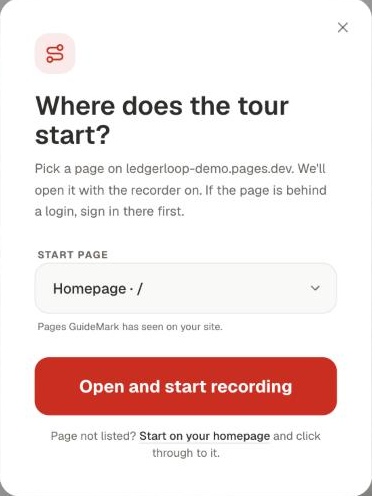
In the dashboard, click New Tour and pick the page the tour starts on, then Open and start recording. GuideMark lists the pages it has already seen on your site, and remembers the one you used last time. Page not listed? Start on your homepage and click through to it. If the page is behind a login, sign in to your app there first.
Record the steps on your site
Your app opens in a new tab with the editor already signed in (no extra login, and nothing is shown to your visitors). Click the elements you want to explain, in order. Each click adds a step, with a suggested title and text written from the element you clicked.
Edit and save
Review the steps, rewrite any text that isn't quite right, and save. A tour saved from the editor goes live straight away on its page, and replaces any tour that was live there. To keep it as a draft, switch it off in the dashboard afterwards (see Publishing).
Step actions
Each step moves on when the user does something:
| Action | The step moves on when… |
|---|---|
click (default) | the user clicks the highlighted element |
hover | the user hovers it |
type | the user types into it (the step can carry the text to type) |
Editing a tour later
Click Edit on the tour card in the dashboard. The editor opens on the tour's page with its steps loaded. Saving replaces the title, page and all steps.
Let an agent write it
A coding agent can create the same tour from your code, picking stable selectors like ids and data attributes. See Agents.